- Iran,Tehran,Jordan,East Arash Boulevard,No.6,Unit 4
Aren Law Institute was established with the cooperation of a group of graduates and continues to this day with the aim of accepting lawyers.

Like most DSLRs today, the Canon 77D offers Live View. Live View essentially turns off the camera’s viewfinder and shows a live preview of your subject on the camera’s LCD screen. In the following two sections, I’ll explain the basics of using Live View:
Switching to Live View for Shooting:
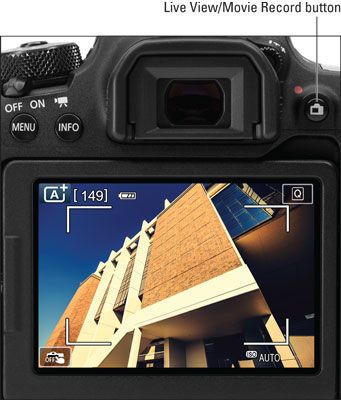
To switch from using the viewfinder to Live View, simply press the Live View button (see image below). You’ll hear a beep as your viewfinder goes completely dark and the screen displays the live image. By default, some shooting information also appears, the amount and type of information will vary depending on your exposure mode and a few other settings.
Notice the Live View button. In Live View mode, a live preview of your subject appears on the monitor and the viewfinder is disabled.
Toggle Live View Shoot on/off in the camera menu
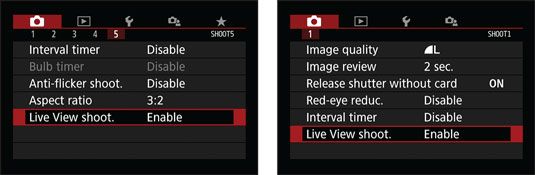
To toggle this feature on and off, you need to firmly press the Live View button on your Canon 77D. Don’t worry if nothing happens after pressing the button once or twice. You may need to enable the Live View Shoot option in your camera’s menu. This is the default setting, but sometimes you or someone else may have disabled this option. How you find the Live View Shoot option in your menu depends on the shooting mode you’re in. In advanced modes (P, TV, Av, and M), go to the Shoot5 menu, as shown on the left in the image below. In other modes, it’s in the Shoot1 menu, as shown on the right.
To use the Live View feature, make sure this option is set to Enable.
But why does Canon allow you to turn Live View on and off on the Canon 77D?
Well, the answer is easy; you may accidentally hit this button sometimes, even when you don’t really mean to switch to Live View. So we can prevent accidental mistakes in some cases.
Using the Live View button to shoot video on the Canon 77D:
To record video, simply move the camera’s power button to the video recording mode, which is marked with a video camera icon. In this case, the Live View button will be used to start and stop video recording.
It should be noted that in video recording mode, you cannot use the viewfinder, so setting the Live View Shoot option in the camera menu, which I explained in the previous section (yellow box), has no effect.
As I mentioned, if you’re in video mode, you can start and stop recording video by pressing the Live View button each time. Plus, to return to stills mode, you can toggle the camera’s power switch from video mode to the On position again.
In many ways, shooting in Live View is similar to shooting with the viewfinder, but some important aspects, like autofocus, work very differently.
I hope this article “Switching to Live View on the Canon 77D” has been helpful. I look forward to your comments and questions. ♥

written by:
written by:
written by: